Blog · No. 09 · Beginner
Claude Design (the website builder you didn't know you had).

A few weeks ago, I asked Claude to design a website. Not to write the code for a website. Not to describe what a website should look like. I asked it to actually design one, with pages, colours, fonts, navigation, and a newsletter signup form. It did the whole thing in about four minutes.
The tool is called Claude Design. It lives at claude.ai/design, and if you have a Claude account, you already have access to it. You probably just did not know it was there. Most people do not.
Here is how it works, what it is good at, and how to get your finished website out of it when you are done.
What you see when you arrive
Go to claude.ai/design in your browser. You will see a screen that looks like this:
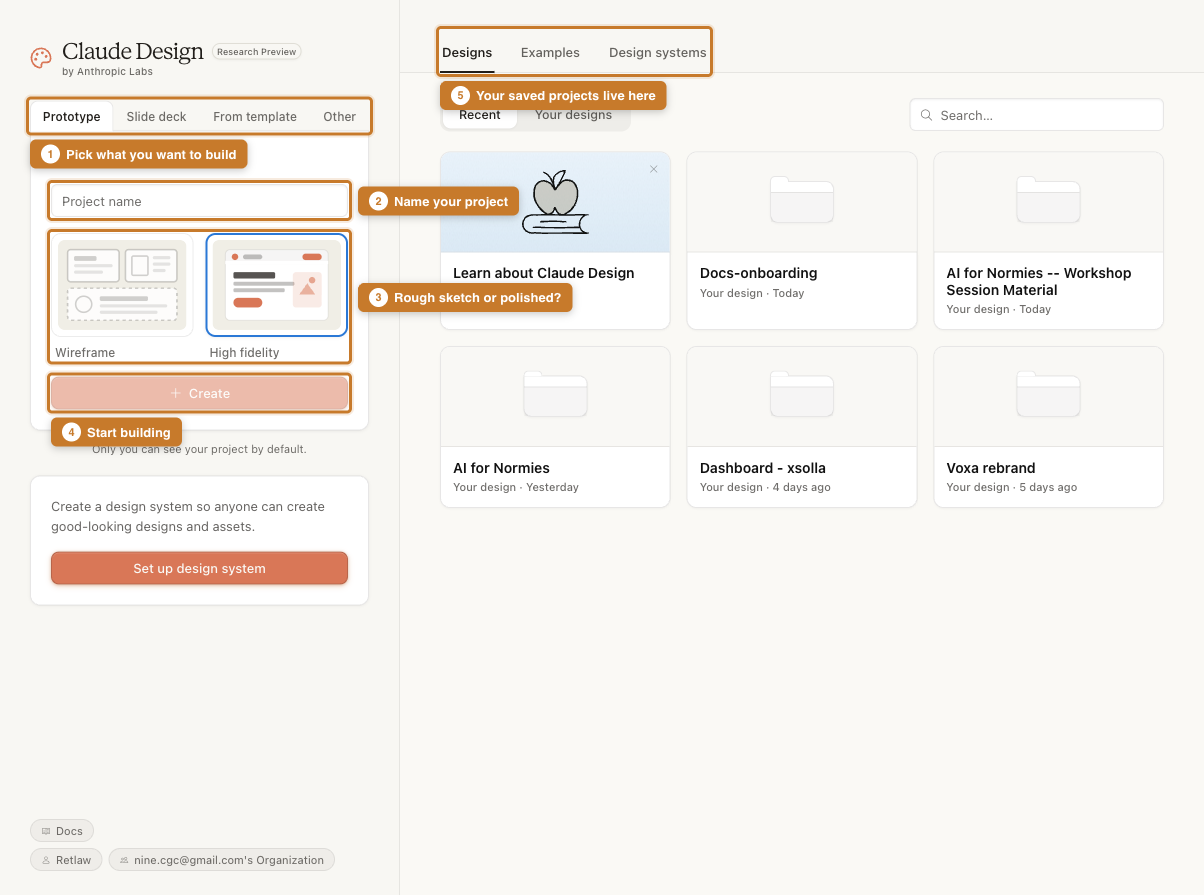
Let me walk you through the numbered labels:
- Pick what you are building. You can create a prototype (a website or app), a slide deck, start from a template, or choose "Other" for anything else. For a website, pick Prototype.
- Name your project. Give it something descriptive. "My business website" or "Newsletter landing page" works fine.
- Choose a starting style. Wireframe gives you a rough sketch. High fidelity gives you something polished with colours, fonts, and proper styling. If you want something you could actually use, pick High fidelity.
- Start building. Once you have a name and a style, hit Create. That is it.
- Your saved projects. Everything you have built before shows up here. You can go back and change things whenever you like.
What happens after you click Create
Once your project is open, you land in an editor that looks like this:
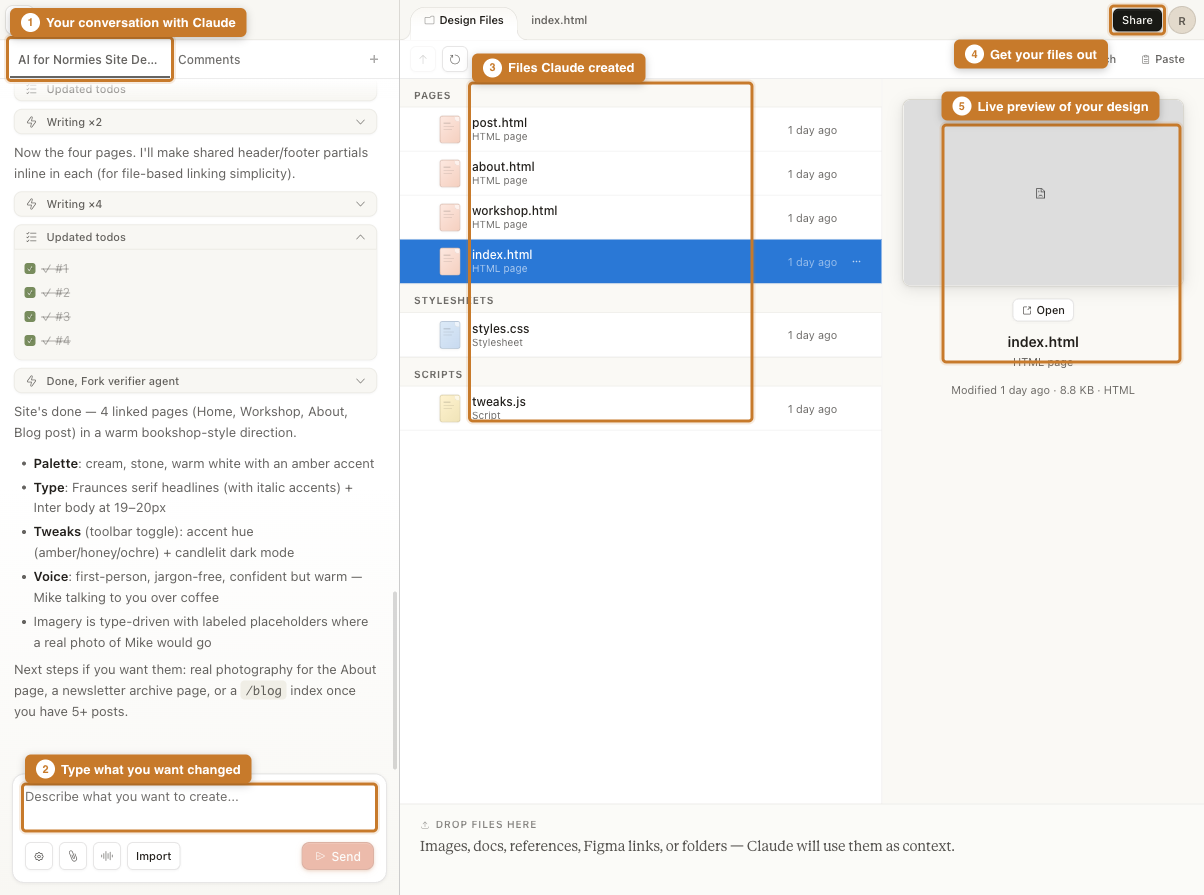
There are three panels:
- Your conversation with Claude (left). This is where you describe what you want. You type in plain English, just like you would in a normal Claude chat. "I want a website for my bookshop with a homepage, an about page, and a contact form." Claude will ask a few questions to nail down the details, then start building.
- The input box (bottom left). After the initial build, you can ask for changes here. "Make the header bigger." "Change the accent colour to blue." "Add a pricing section." Claude updates the files in real time.
- The files Claude created (middle). These are actual website files: HTML pages, a stylesheet, scripts. You do not need to understand them. Claude handles all of that. But they are there if you ever want to look.
On the right, you get a live preview of what your site looks like. Click any file to see it rendered. Click "Open" to view it full-screen.
What to say to Claude
The best results come from giving Claude a clear picture of what you want. You do not need to be precise about fonts or pixels. You need to be clear about the feel. Here is the kind of thing that works well:
"Design a website for my photography business. Minimal, elegant, lots of whitespace. I want a portfolio page with a grid of images, an about page, and a contact form. The feel should be like a gallery, not a tech startup."
Claude will ask follow-up questions: what kind of typography, how many pages, what colours. Answer them and it starts building. The whole thing usually takes a few minutes.
Getting your website out
This is the part people always ask about. You have a beautiful website inside Claude Design. How do you get it onto the actual internet?
Click Share in the top right corner. A menu drops down with several options:
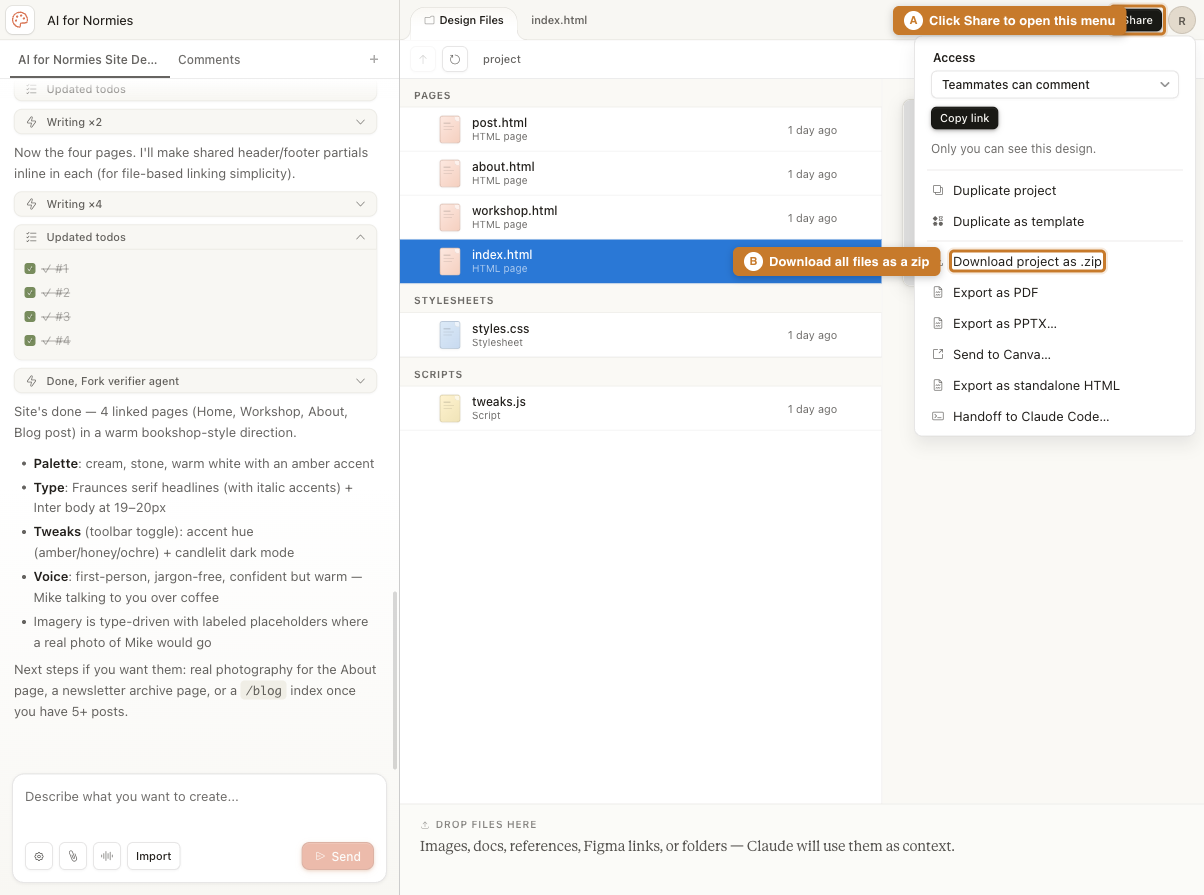
The one you care about is "Download project as .zip". Click it and you get a zip file containing every page, every stylesheet, every script. These are real, working website files. You can upload them to any web host.
Four steps, start to finish
Pick "Prototype", name your project, choose "High fidelity", and click Create.
Tell Claude about your site in plain English. What pages, what audience, what feel. It will ask a few questions, then build.
Ask for changes in the chat. "Make the heading larger." "Add a testimonials section." Claude updates the files live.
Click Share, then "Download project as .zip". You now have a complete website you can put anywhere.
What it is good at (and what it is not)
Claude Design is genuinely impressive for certain things. Landing pages, portfolio sites, event pages, small business websites, newsletters. If you need something that looks professional and you do not have a designer, this is remarkably good.
It is less suited for complex web applications with user accounts, payment processing, or databases. But that is not what most people need. Most people need a clean, professional page that says who they are and what they do. Claude Design handles that extremely well.
The site you are reading right now started its life in Claude Design. I described what I wanted, Claude built the pages, I downloaded the zip, tweaked a few things, and deployed it. The whole design phase took less time than it takes to cook dinner.
One thing to know
Claude Design is currently labelled "Research Preview", which means Anthropic is still developing it. It works well right now, but it will get better. If you have a Claude Pro or Team account, you already have access. Just go to claude.ai/design and start building.
And if you get stuck, you can always just ask Claude. In the chat panel, type "I am confused about how to get my files out" or "Can you make this look more professional?" It is genuinely helpful at explaining itself.